
Estimated reading time: 5 minutes
A dependable home network is the backbone of modern living. From remote work and streaming to gaming and smart home devices, a seamless connection keeps everything running smoothly. If you’ve ever struggled with slow speeds or dead zones, don’t worry—you’re in the right place.
I’ll guide you through setting up a network that meets your needs without overwhelming you. Here’s what we’ll cover:
- The basics of creating a connected system.
- Gathering the right tools and equipment.
- Step-by-step setup instructions.
- Ways to improve speed and coverage.
- How to lock down your network for security.
- Common issues and practical fixes.
By the time we’re done, you’ll have a well-oiled network ready to handle your busy digital life.
Understanding the Basics
At its core, your setup connects all your devices—laptops, phones, printers, and smart gadgets—so they can talk to each other and access the internet. Think of it like a digital highway, with your router acting as the traffic controller.
You can choose between two types of systems:
- Wired Connections: Ideal for stability and speed. Great for gamers and heavy downloaders.
- Wireless Connections: Convenient and flexible, perfect for everyday browsing and mobile devices.
Both have their strengths, so your choice depends on your needs. In many homes, a mix of both works best.
Tools You’ll Need
Setting up doesn’t require a Ph.D. in networking, just the right gear. Here’s a checklist:
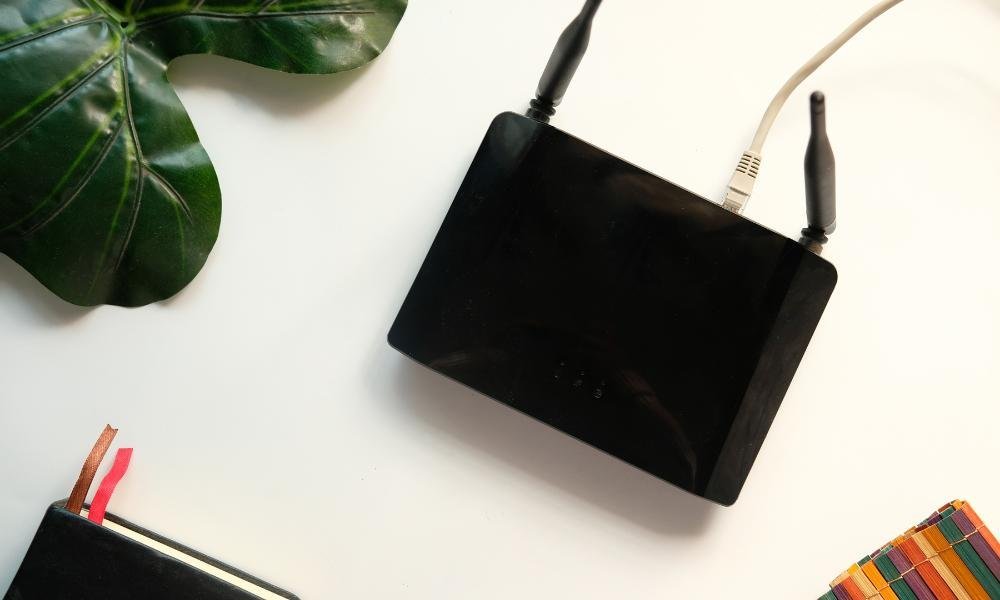
Router: The hub that connects all your devices to the internet. Invest in one that supports the latest standards like Wi-Fi 6 for better performance.
Modem: This links your system to your internet provider. Some routers include built-in modems for an all-in-one solution.
Ethernet Cables: These are for wired connections. Cat6 cables are a reliable, high-speed choice.
Access Points or Extenders: To stretch your signal to hard-to-reach spots, like the basement or backyard.
Bonus tip: Label your cables during setup to save yourself a headache later. Trust me, future-you will thank you.
Step-by-Step Setup Guide
Ready to get started? Follow these straightforward steps to get everything running like a charm.
Step 1: Find the Best Spot for Your Router
Place your router centrally in your home, elevated on a shelf or table. Keep it away from walls, metal surfaces, and devices like microwaves that can mess with the signal. Think of it as giving your router a stage to perform at its best.
Step 2: Connect the Hardware
- Link your modem to the router using an Ethernet cable.
- For wired systems, plug your devices directly into the router.
- Wireless devices will connect later during configuration.
Step 3: Customize Settings
- Access your router’s setup page through your browser (check the instructions on your device).
- Change the default network name and password. Make it something unique yet memorable—bonus points for creativity!
- Turn on encryption (WPA3 is the gold standard) and enable your firewall.
Step 4: Test and Adjust
Run a speed test to see if you’re getting the performance you expect. Adjust settings or reposition your router if needed.
Boosting Speed and Coverage
Nobody likes buffering. Here’s how to keep your connection running smoothly:
Upgrade Your Hardware
If your router is older than your smartphone, it’s time for an upgrade. Newer models handle more devices and offer faster speeds.
Use Access Points or Mesh Systems
These spread your signal evenly across your home, eliminating dead zones.
Limit Interference
Place your router away from other electronic devices or thick walls that could block the signal.
Pro tip: If multiple users are online at once, prioritize bandwidth for important tasks like video calls using your router’s Quality of Service (QoS) feature.
Securing Your System
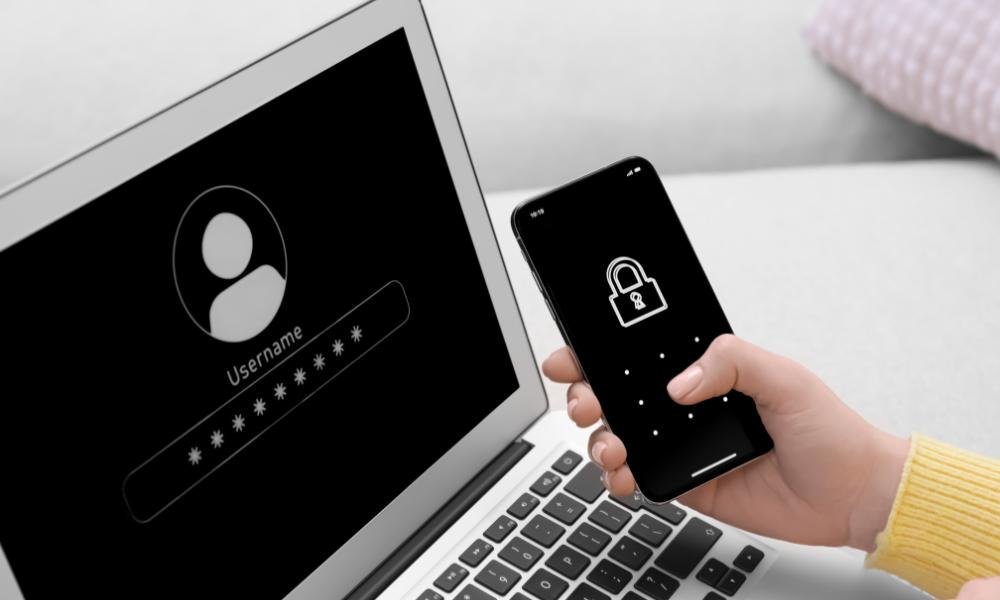
A secure connection isn’t just about peace of mind—it’s essential for protecting your data.
Create Strong Passwords
A mix of letters, numbers, and symbols makes it harder for hackers to break in.
Enable Guest Access
Let visitors use a separate network to protect your devices.
Keep Software Up-to-Date
Check for firmware updates regularly. Routers often release patches for security vulnerabilities.
Use a VPN
A virtual private network encrypts your connection, making it harder for anyone to snoop on your activity.
Remember, a secure network keeps your devices safe from prying eyes—and keeps your neighbors from piggybacking on your Wi-Fi!
Troubleshooting Tips
Even the best setups hit occasional hiccups. Here’s how to handle common problems:
Slow Speeds
- Run a speed test to check your connection.
- Disconnect devices you’re not using. If that doesn’t help, it might be time to upgrade your plan with your provider.
Weak Signal
- Try repositioning your router.
- Use an extender or a mesh system to fill in coverage gaps.
Connectivity Issues
- Reboot your router and modem—it’s a classic fix for a reason.
- Double-check your password and security settings.
Devices Won’t Connect
- Make sure your device supports the latest standards. Some older gadgets might need updates or adapters.
Extra Tips for Success
Think Long-Term: If you’re renovating or building, consider installing Ethernet ports in key areas for future-proofing.
Monitor Your Network: Most modern routers let you see which devices are connected and control access.
Educate Your Household: Teach everyone basic troubleshooting to avoid a flurry of “The Wi-Fi is down!” complaints.
Final Thoughts
Building a reliable network doesn’t have to be complicated. With the right tools and these simple steps, you can create a system that’s fast, secure, and ready for whatever life throws at it—Zoom calls, Netflix binges, or an army of smart devices.
So go ahead, take control of your connection. A smarter, smoother online experience is just a few steps away.